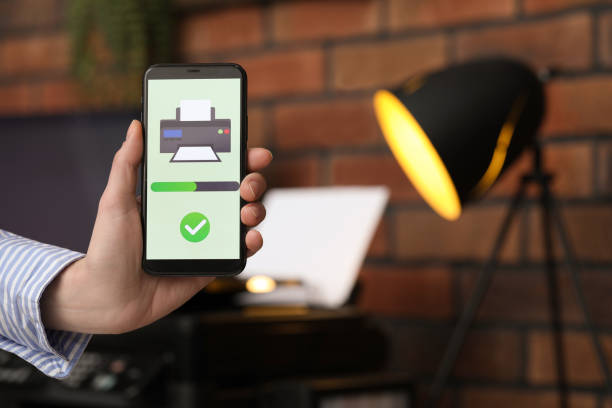
Faxing may seem like a relic of the past, but for many freelancers and small businesses, it remains a necessary tool for sending and receiving documents securely. If you’re a freelancer who often needs to send contracts, invoices, or other sensitive documents to clients, using your iPhone for faxing can streamline your workflow and enhance professionalism. This guide will walk you through the options available for faxing from your iPhone, ensuring you can manage client communications effectively.
Need for Faxing in Freelancing
Why Faxing Still Matters
In many industries, including legal, healthcare, and finance, faxing is still preferred for its security and legal validity. It provides a tangible paper trail that email cannot always match. As a freelancer, using faxing can reassure clients of your professionalism and commitment to secure document handling.
Legal and Compliance Considerations
Certain documents, such as contracts and signed agreements, may require faxing to comply with legal standards or industry regulations. Understanding these requirements ensures you meet client expectations and regulatory obligations.
Options for Faxing from Your iPhone
Using Fax Apps
Several apps available on the App Store allow you to send and receive faxes directly from your iPhone. These apps typically require a subscription or pay-per-use model and offer features like document scanning, digital signatures, and secure transmission. Examples include eFax, FaxFile, and FaxBurner.
Built-in iPhone Features
Recent versions of iOS have integrated features that facilitate faxing. You can use the built-in Notes app to scan documents and then send them as faxes using third-party apps or services. This method leverages your iPhone’s camera for document capture and ensures seamless integration with other iOS functionalities.
Setting Up Fax Services on Your iPhone
Choosing a Fax Service Provider
Selecting the right fax service provider is crucial for reliable and secure document transmission. Consider factors such as pricing plans, international faxing capabilities, and customer support. Look for providers that offer mobile app compatibility and encryption for protecting sensitive information.
Installing and Configuring Fax Apps
Once you’ve chosen a fax service provider, download and install their app from the App Store. Follow the app’s setup instructions to create an account and configure your faxing preferences, such as cover pages, recipient details, and notification settings. Ensure your account is funded or subscribed appropriately to avoid interruptions in service.
Sending Faxes from Your iPhone
Scanning Documents
Before sending a fax, ensure your document is scanned and saved in a compatible format, such as PDF or image files. Use your iPhone’s camera to capture clear, legible images of each page. Many fax apps offer built-in document cropping and enhancement tools to improve scan quality.
Sending the Fax
Open your chosen fax app and navigate to the option for sending a new fax. Enter the recipient’s fax number or select a contact from your address book. Attach the scanned documents, add any necessary cover pages or notes, and review the transmission details. Confirm the sending process and monitor the status of your fax through the app’s interface.
Receiving Faxes on Your iPhone
Notifications and Alerts
Fax apps typically notify you of incoming faxes through push notifications or email alerts. Ensure notifications are enabled in your app settings to receive timely updates. You can configure preferences for how incoming faxes are handled, such as automatic download or manual review.
Viewing and Managing Incoming Faxes
When you receive a fax, open your fax app to view the incoming documents. Depending on the app, you may be able to preview faxes directly within the app’s interface. Download or save received faxes to your iPhone for future reference or forwarding to clients and collaborators.
Integrating Faxing into Your Freelance Workflow
Automating Document Handling
Integrate faxing into your overall document management workflow to streamline client communications. Use cloud storage services like Dropbox or Google Drive to store faxed documents securely and access them from any device. Automate file naming conventions and folder organization to maintain a structured digital archive.
Enhancing Client Communication
Utilize faxing as part of a comprehensive communication strategy with clients. Clearly communicate your preferred method for document exchange, whether it’s faxing, email, or secure file transfer services. Provide clients with instructions on how to securely send documents to you to maintain confidentiality and data integrity.
Conclusion
In today’s digital age, the ability to fax from your iPhone offers freelancers a flexible and secure method for managing client communications. By leveraging mobile faxing apps and built-in iOS features, you can send and receive documents efficiently while meeting legal and compliance requirements. Incorporate faxing into your freelance workflow to enhance professionalism, streamline document handling, and strengthen client relationships. With the right tools and practices in place, faxing from your iPhone becomes an integral part of your freelance toolkit, supporting your business growth and operational efficiency.
Apart from that, if you are interested to know about Can Faxing be Safer than Email? then visit our Business category.